
Fix VS Code IPYNB PDF Export
This page is for VS Code notebook users whose editor can run the notebook, but the PDF export step fails or produces a bad document. First confirm the outputs are visible and saved in the .ipynb file; if nbconvert, Pandoc, xelatex, TeX, local fonts, or print settings block the final PDF, use a saved-notebook fallback that renders the existing notebook into a generated PDF preview.
Extractable Summary
- Page type
- Troubleshooting guide, not a blog post and not a duplicate converter page.
- Best for
- VS Code notebook users blocked by nbconvert, xelatex, Pandoc, unsaved outputs, or print settings.
- Fallback path
- Run and save the notebook in VS Code, upload the saved .ipynb, preview the generated PDF, then download.
- Boundary
- The fallback renders saved content only; it does not execute kernels, read local datasets, or call private APIs.
- Primary next action
- Return to the homepage converter only after the notebook outputs are saved.
Best when xelatex is missing
the PDF task should not require installing a full TeX distribution on a managed machine.
Best when nbconvert fails
the generated-PDF fallback isolates the final document from your local export stack.
Best when outputs disappear
saving the notebook after running cells confirms outputs are actually stored in the .ipynb file.
Best when grading requires code
Full Notebook PDF keeps code cells visible while still giving you a previewable PDF file.
When This VS Code Fallback Is The Right Choice
Use this path when VS Code is still your notebook editor, but the final PDF export is being blocked by local dependencies or inconsistent print output.
Symptoms: VS Code can run the notebook but PDF export is blocked
The most common VS Code IPYNB to PDF failure is not a notebook failure. The notebook runs, Markdown and charts look correct in the editor, but the export step reports nbconvert, Pandoc, xelatex, or TeX errors. Another common symptom is a PDF that opens but loses charts, clips wide tables, changes fonts, or looks different from the notebook preview.
The fastest diagnosis is to separate content-state problems from export-toolchain problems. If outputs are missing inside VS Code, run the cells and save the notebook again. If outputs are visible and saved, but VS Code still cannot create a clean PDF, the issue is usually the local export stack or print settings rather than the notebook content itself.
- xelatex or TeX not found
- nbconvert or Pandoc failed
- blank charts or tables
- PDF differs from notebook preview
VS Code PDF export errors to check first
Start with the exact message because each error points to a different layer. A missing xelatex or TeX message usually means the local PDF engine is unavailable. A Pandoc or nbconvert failure points to the notebook export toolchain. Blank charts usually mean the notebook output was never saved, even if the chart appeared in the running editor.
If the PDF only looks wrong after using a browser print dialog, treat that as a final paper-layout issue, not the notebook conversion step. Browser Print to PDF can adjust paper size, margins, and scale after a PDF exists, but it is not the best place to solve missing outputs, clipped tables, font substitution, or code visibility.
- xelatex not found: local TeX engine missing
- Pandoc not found: document conversion dependency missing
- nbconvert failed: local export stack failed
- blank chart: output likely not saved
- bad print layout: browser paper settings changed the result
Fallback workflow: save the notebook, then generate the PDF
To fix VS Code notebook PDF export without debugging a local TeX stack, keep VS Code as the place where you run and inspect the notebook. Then save the .ipynb file and upload that saved file to a converter that renders the existing notebook content into a generated PDF. This fallback works from the stored notebook, so it depends on saved outputs rather than live kernels.
Choose Report PDF when the reader needs a clean document with Markdown, tables, charts, formulas, and conclusions, but not code inputs. Choose Full Notebook PDF when the assignment, reviewer, or teammate needs code cells and outputs together. In both cases, preview the generated PDF before downloading so page breaks, wide tables, and code visibility can be checked before submission.
What this page is not trying to replace
This page does not argue that VS Code export is bad. If your local setup already exports a clean PDF, keep using it. The problem this page solves is narrower: how to convert IPYNB to PDF in VS Code when the editor works, but the local PDF export path is unreliable or too heavy for the current machine.
It also does not execute notebook code on the server. Local datasets, private APIs, environment variables, and unsaved outputs stay outside the fallback path. Run the notebook in VS Code first, save the visible results into the .ipynb file, and treat the generated PDF as a document rendering step.
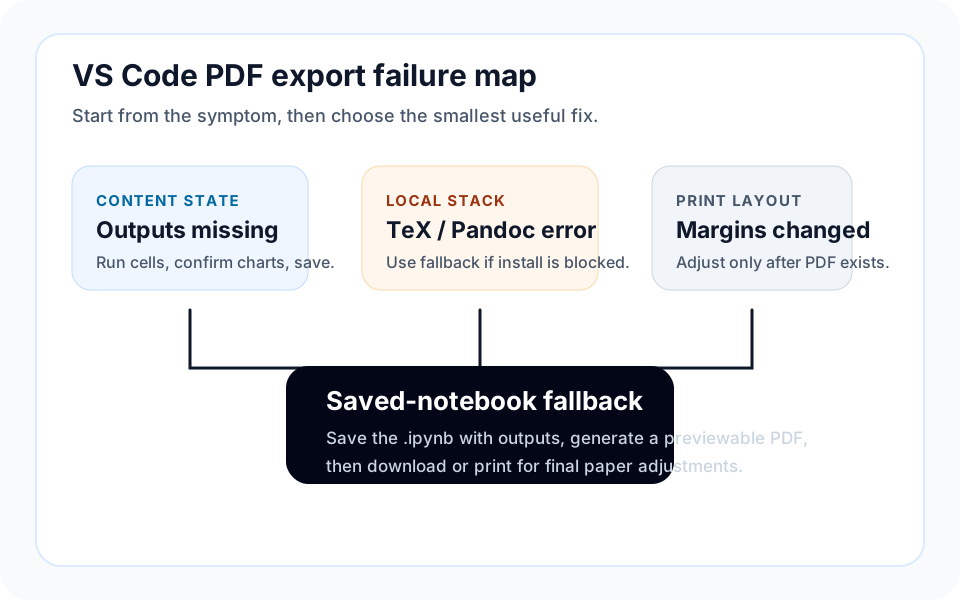
VS Code Failure Map
Export errors are usually either content-state problems or local toolchain problems. Diagnose the source before changing the notebook.
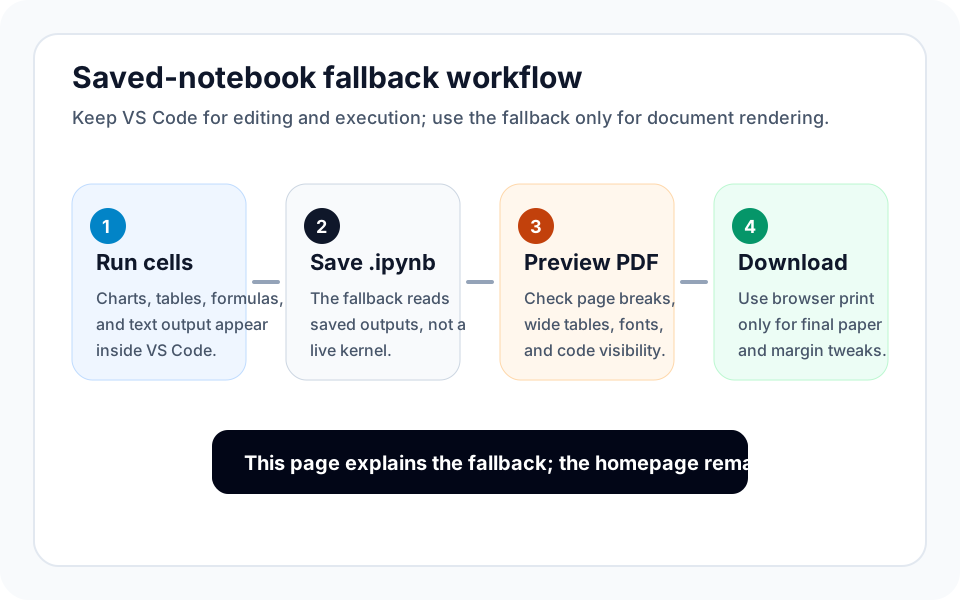
Fallback Decision
Use VS Code export when it works; switch when local dependencies or print settings block the final PDF.
Recommended steps
- 1
Run cells in VS Code
Execute the cells that should appear in the final PDF, including charts, tables, text output, and formulas.
- 2
Save the .ipynb file
Confirm the visible output cells are stored in the notebook before leaving VS Code.
- 3
Upload the saved notebook
Use the converter when VS Code export fails or when you need a generated preview before download.
- 4
Choose Report or Full
Pick Report PDF for readers, or Full Notebook PDF when visible code is required.
- 5
Check the generated PDF
Open the full preview, verify formatting, then download or use Print to PDF for final paper and margin tweaks.
Specs and limitations
- Diagnose first
- Check whether outputs are saved in the notebook before blaming PDF export.
- Toolchain issue
- xelatex, TeX, Pandoc, or nbconvert failures point to local dependencies.
- Fallback limit
- The converter renders saved content; it will not run VS Code kernels or access local files.
- Preview role
- The generated preview checks page flow, table width, formulas, and code visibility.
- Browser print role
- Use browser printing only for final paper size, margin, or scale adjustments after the PDF exists.
- Best next page
- Use the homepage converter for the actual saved-notebook rendering step.
FAQ
Is this a separate converter page?
descriptiveNo. This is a VS Code export troubleshooting page. The actual saved-notebook conversion flow stays on the IPYNB Tools homepage so the main converter page keeps the generic conversion intent.
What does xelatex not found mean in VS Code?
mechanismIt usually means the local TeX engine required by one export path is not installed, not on PATH, or not available to the VS Code notebook export process.
Why are charts missing after export?
mechanismCharts are usually missing because the notebook was not saved after the cells ran, or because an output depends on a live widget. Run the notebook, confirm the chart is visible, and save the .ipynb file before conversion.
Will the fallback run my Python code?
mechanismNo. It renders saved notebook outputs, so run and save your notebook in VS Code first. The fallback does not access local CSV files, kernels, private APIs, or environment variables.
Should I use Report PDF or Full Notebook PDF?
decisionUse Report PDF when the reader only needs explanation and results. Use Full Notebook PDF when code review, grading, or reproducibility requires visible code cells.
When should I keep using VS Code export?
decisionKeep using VS Code export when your local stack works and the PDF preview is acceptable. Use the fallback when dependencies, fonts, margins, or print settings become the blocker.
Is Print to PDF still useful?
decisionYes. Print to PDF is useful for final paper size, margin, or scale adjustments after a PDF exists. It should not be the only conversion step when you need a generated PDF preview and direct download.