Clean Report mode
Hide code inputs while keeping Markdown, tables, charts, and saved conclusions for homework, teaching notes, and stakeholder reports.
Code hiddenSaved outputs preservedReady-to-download file
Try Report mode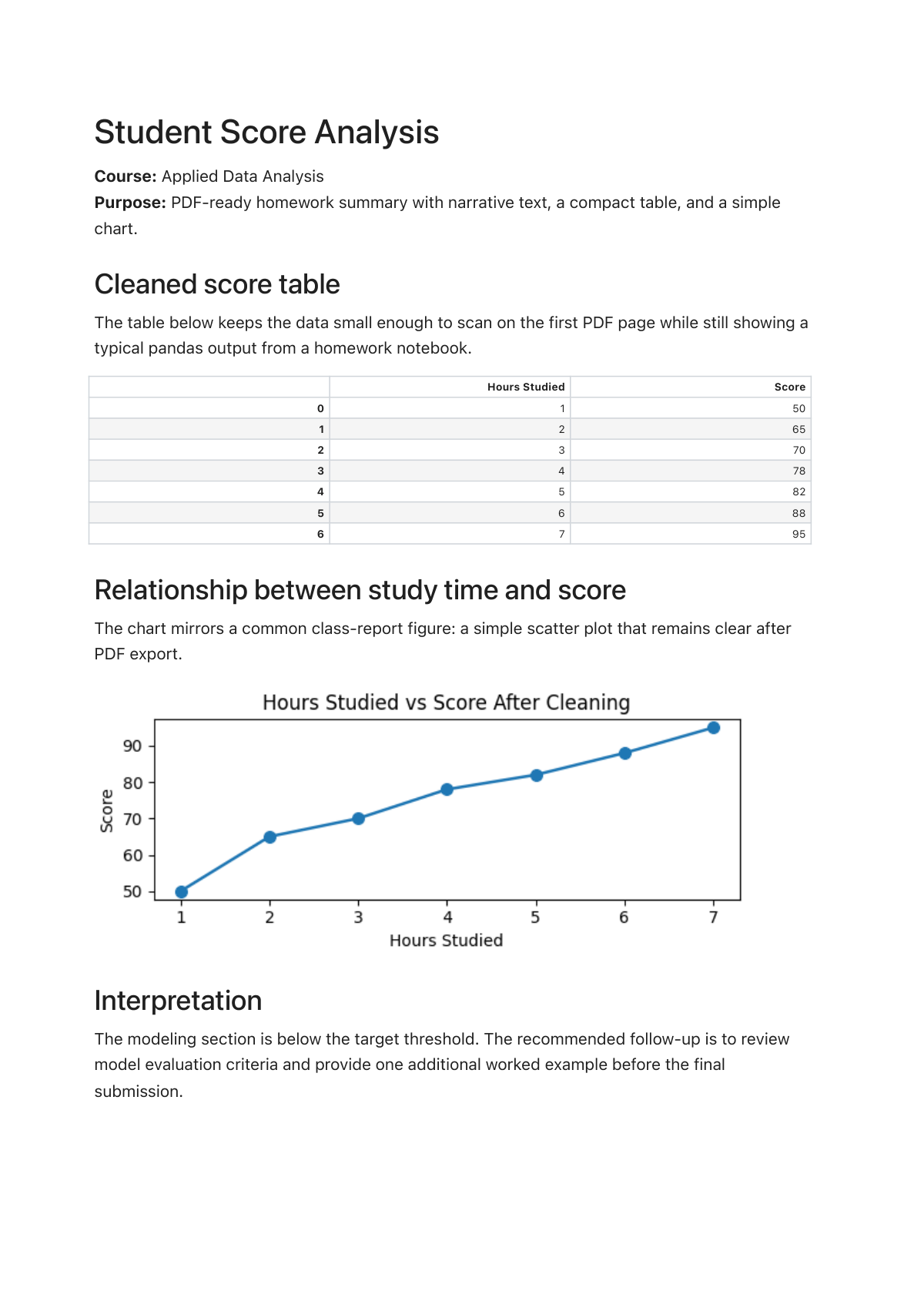
Use IPYNB to PDF to turn Jupyter Notebook (.ipynb) files into clean reports. Hide code for report-style documents, or include code for full notebook exports.
Upload notebook
Max file size: 50MB
or click to browse your notebook
Report mode hides code inputs while keeping Markdown, tables, charts, and saved outputs.
Student Score Analysis · Report PDF
To convert an IPYNB to PDF, run the cells you want to show, save the notebook, then upload the saved .ipynb file. IPYNB Tools renders the saved notebook content, lets you choose Report PDF or Full Notebook PDF, shows a generated preview, and does not execute code or rebuild outputs that were not saved.
The IPYNB to PDF workflow should prove the output with real report previews: clean reports, full notebook exports, and an IPYNB to PDF result you can inspect before downloading.
Hide code inputs while keeping Markdown, tables, charts, and saved conclusions for homework, teaching notes, and stakeholder reports.
Keep code, Markdown, and outputs together when the reader needs technical review, grading, or process audit context.
Inspect the generated pages before download. This IPYNB to PDF preview is not just an HTML page waiting for the print dialog.
Real notebooks mix Markdown, code, saved outputs, tables, charts, formulas, and short conclusions. An IPYNB to PDF page should prove those cases instead of only describing them.
Students and teachers
Assignments, teaching notes, and class reports.
Data analysts
Tables, charts, and stakeholder summaries.
ML / AI learners
Metrics, curves, and saved model results.
Colab and VS Code users
When local export gets stuck.
Homework and course report
A concise class-report notebook with a cleaned table and a study-time chart.
Business analysis report
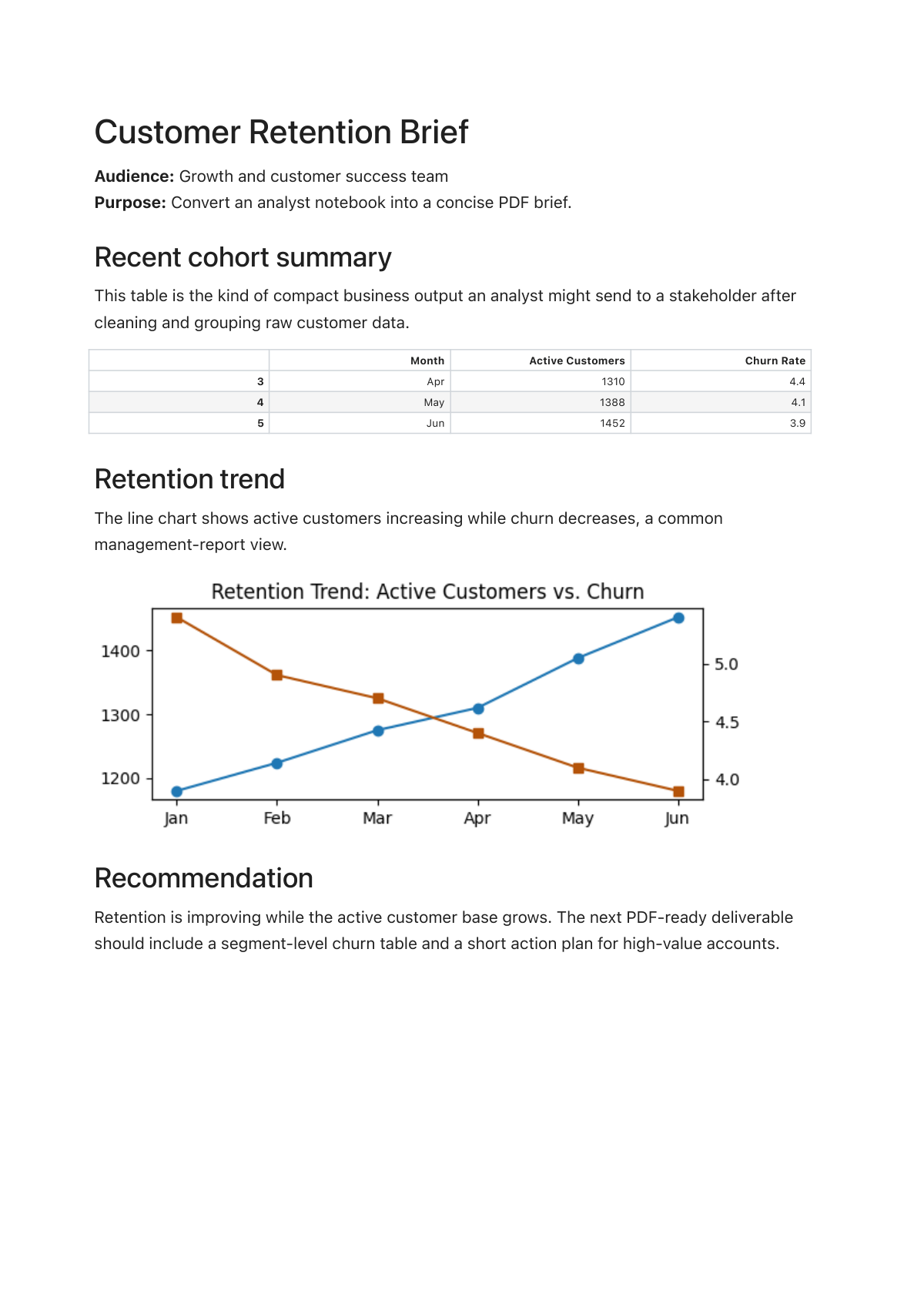
A stakeholder-style retention summary with cohort metrics and a trend chart.
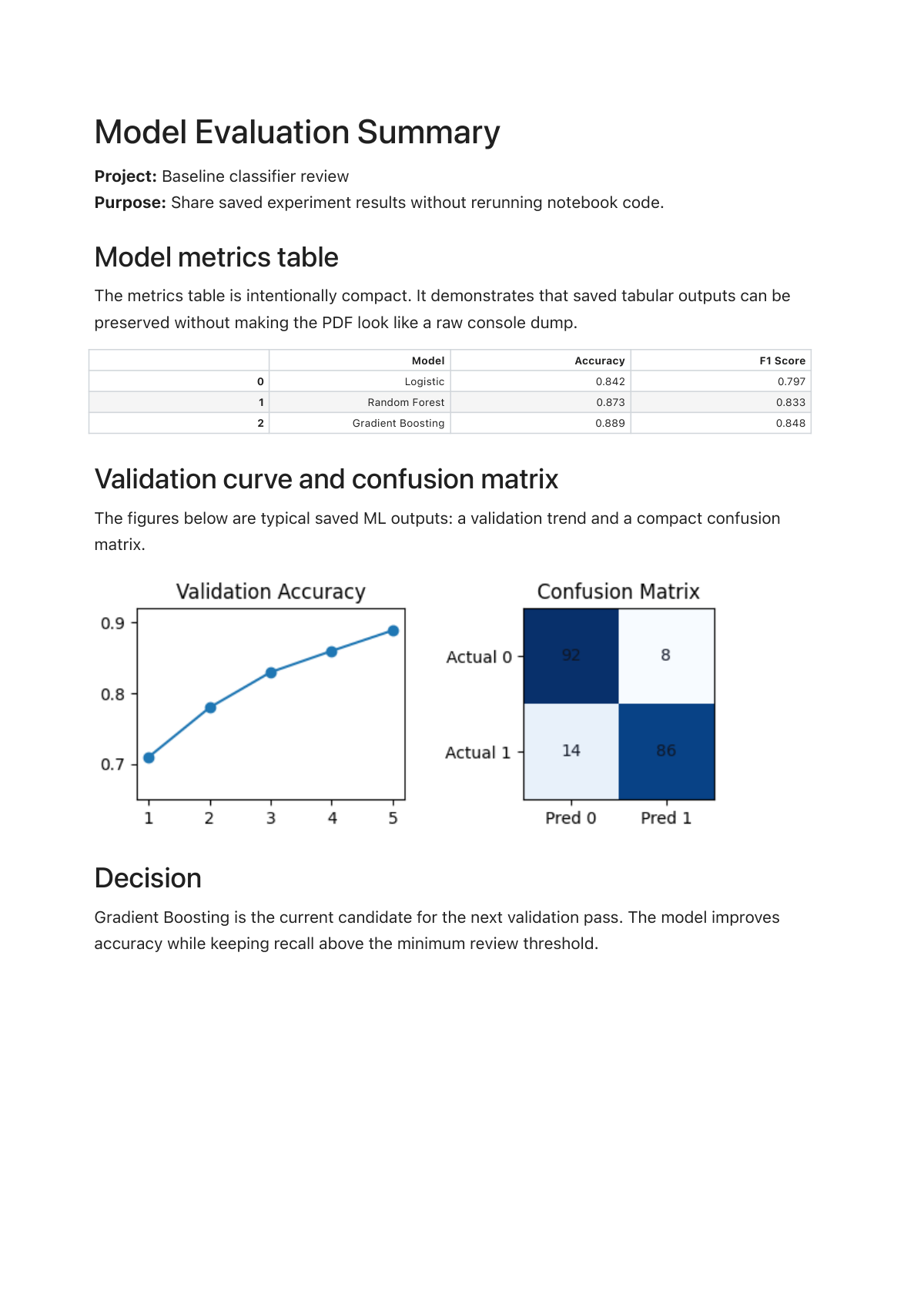
ML experiment review
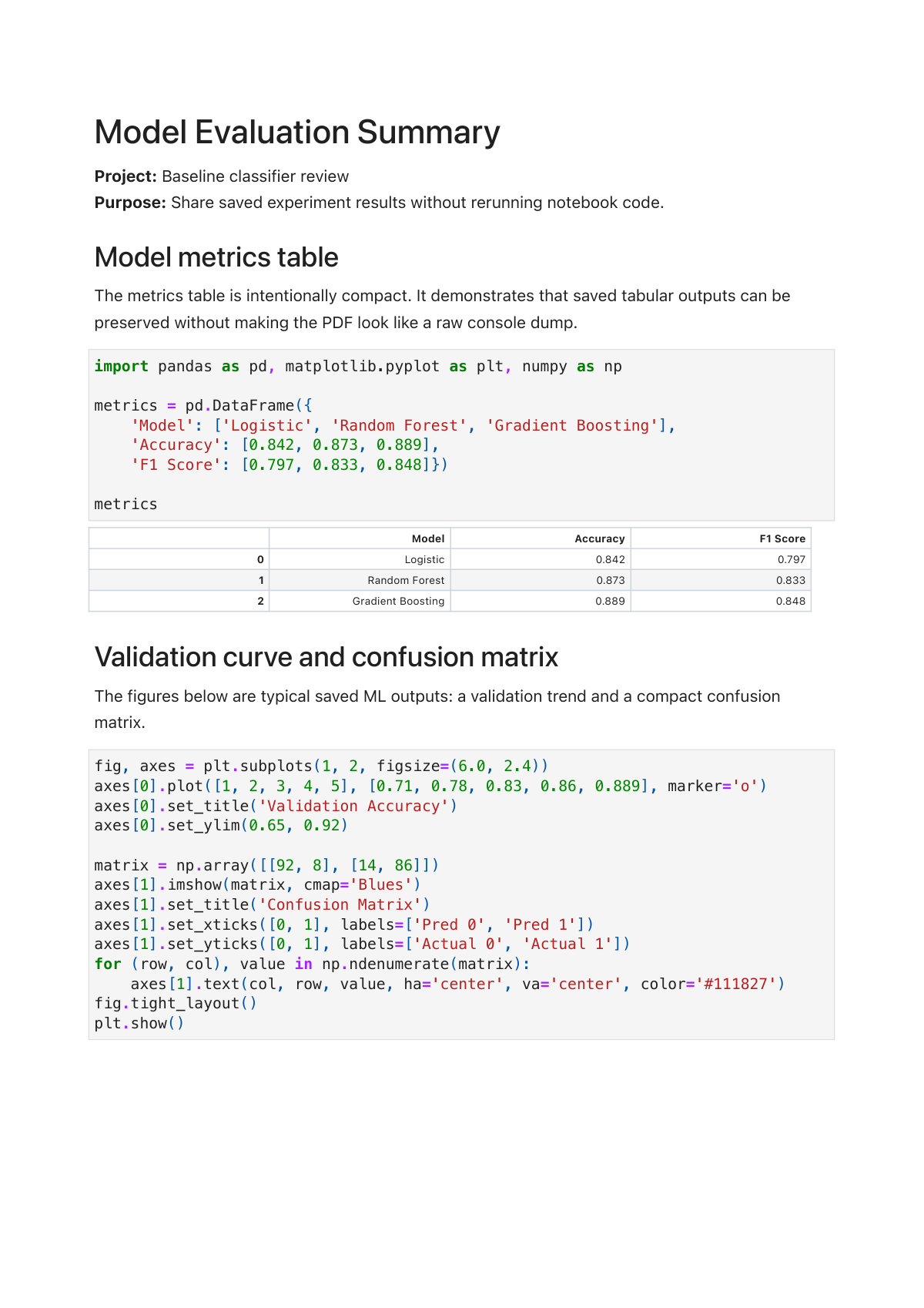
A compact model review with metrics, a validation curve, and a confusion matrix.
The PDF is generated from content saved inside the .ipynb file. If a chart, table, formula, or output is not visible and saved in the notebook, it will not appear in the PDF.
Generate the charts, tables, formulas, and final text you need.
Write those outputs into the .ipynb file before upload.
Confirm the editor shows the content you expect in the PDF.
Upload the saved file and inspect the generated preview.
Local dependency problem. Use the saved-notebook fallback path.
Output was not saved. Run, save, and upload the notebook again.
Final print setting problem. Generate the PDF first, then adjust paper or scale.
Choose Full Notebook PDF instead of Report PDF.
Keep related links near the decision context: start with the step-by-step guide, diagnose broken exports with the error map, or switch to Python extraction when the next reader needs source code. For format choice, compare IPYNB vs PY.
A direct step-by-step path for saving outputs, choosing the right mode, previewing, and downloading the final PDF.
For users coming from Jupyter, JupyterLab, Colab, or VS Code who need the full saved-notebook workflow.
For xelatex, Pandoc, nbconvert, unsaved output, and print-setting failures.
Diagnose nbconvert, xelatex, Pandoc, unsaved outputs, and print-flow issues before you change the workflow.
Run cells and save the .ipynb file.
Drop a saved notebook.
Report PDF / Full Notebook PDF
Check pages and outputs.
Save the final file.
Most users already ran the notebook. The missing IPYNB to PDF step is not recomputing results; it is getting a reviewable file without fixing LaTeX, Pandoc, or print settings.
Local export is fragile
Jupyter and VS Code export can fail on LaTeX, Pandoc, or xelatex setup.
Colab is not always direct
The notebook may be in the cloud, but the export path is not always obvious.
The outputs already exist
If the .ipynb is saved, tables and charts can be rendered without running code.
Browser Print to PDF is not a bad workflow. It is useful when you want to save or adjust a document you are already viewing. The difference is that IPYNB Tools does not leave the main conversion step to that dialog; it generates a notebook-aware PDF first.
IPYNB Tools editorial · Updated May 15, 2026
Report mode hides code inputs and keeps Markdown plus saved outputs. Full Notebook mode keeps code, Markdown, and outputs for review or grading.
The converter does not execute code. Run all cells and save the notebook before uploading so charts and results are stored in the file.
Not exactly. Browser Print to PDF is useful, but it is not the main conversion step here. This converter generates a downloadable PDF first, shows a real preview, and still lets you use browser print later for paper size, margin, or scale adjustments.
Server-side rendering creates the PDF before download instead of asking you to finish conversion through a print dialog. It also lets us tune line wrapping, wide tables, images, fonts, and Report/Full modes for more consistent output across devices.
Use PY when you need source code for review, Git, or cleanup. Use PDF when you need to share saved notebook results, charts, and explanations.
Yes. Use this page to create the PDF with saved outputs, then use IPYNB to PY when you also need the source code extracted from the same notebook.
No. The converter renders content already saved inside the .ipynb file. It does not run cells, load local CSV files, or call private APIs.