
Jupyter Notebook to PDF Converter
A Jupyter Notebook to PDF workflow should start from a saved .ipynb file, preserve the outputs already in that file, and give you a generated PDF to review before download. This page is for JupyterLab, classic Jupyter, Colab, and VS Code users who need a shareable PDF without fixing a local TeX toolchain.
Extractable Summary
- Page type
- Scenario landing page for the high-volume Jupyter Notebook to PDF search intent.
- Primary job
- Turn a finished, saved .ipynb notebook into a reader-ready or reviewer-ready PDF.
- Tool fit
- Use the converter when local Jupyter, VS Code, Colab, nbconvert, Pandoc, or TeX export is fragile.
- Required input
- A saved notebook with the outputs, charts, tables, images, and formulas already stored in the file.
- Expected next action
- Open the converter, upload the notebook, choose Report or Full Notebook mode, preview, then download.
Best when local export fails
nbconvert, Pandoc, xelatex, or TeX Live issues should not block a finished notebook report.
Best for reader-facing reports
Report PDF hides code inputs while keeping Markdown explanations and saved notebook outputs visible.
Best for review and grading
Full Notebook PDF keeps code cells, outputs, and narrative text together for technical readers.
Best when preview matters
the generated PDF can be inspected before you rely on it for submission or sharing.
When This Jupyter PDF Workflow Fits
Choose this workflow when the notebook is already complete and you want a generated PDF to inspect before download. Browser Print to PDF can still be useful later for manual paper, margin, or scale adjustments.
Before you convert
A notebook PDF is only as complete as the saved notebook file. Run the cells that should appear in the final document, confirm charts and tables are visible in Jupyter, then save the .ipynb before uploading.
If a notebook depends on local CSV files, private images, environment variables, or live widgets, those assets should be rendered into saved outputs first. The converter cannot recover data that is not stored inside the uploaded notebook.
- Run required cells
- Confirm visible outputs
- Save the .ipynb file
- Remove secrets before upload
What this converter does
The converter reads the saved notebook structure and renders Markdown, headings, code cells, output cells, tables, images, charts, and formulas into a PDF document. It is designed for people who have already run the notebook and need a clean document artifact.
The converter does not run Python, R, Julia, shell commands, or any notebook code. The PDF can only include outputs that already exist inside the saved .ipynb file.
- Report PDF hides code inputs
- Full Notebook PDF keeps code and outputs
- Generated PDF preview before download
Choose the route by notebook context
JupyterLab and classic Jupyter exports are useful when the local environment is already configured. VS Code export is convenient inside a development workspace. Colab download works for quick sharing. IPYNB Tools is the fallback when you need a generated PDF preview without repairing a local export stack.
The practical decision is not which product opened the notebook. The decision is whether the PDF needs to be reader-facing, reviewer-facing, or simply a fast backup when built-in export fails.
- JupyterLab or classic Jupyter: use when local export works
- VS Code: use when notebook work stays in the editor
- Colab: use when the notebook is hosted there
- IPYNB Tools: use when preview and fallback reliability matter
Why use it instead of built-in export
Built-in export is useful when your local setup is healthy. It becomes fragile when TeX, Pandoc, fonts, managed device permissions, or local print settings get in the way. A generated-PDF workflow reduces those local variables.
The practical difference is that the converter creates the PDF first, with notebook-aware handling for long code, wide tables, images, and fonts. Browser printing can still be used afterward if you want manual paper size, margin, or scale control.
Common notebook report cases
The workflow is designed for notebooks that already carry explanatory Markdown and saved outputs, such as student homework, teaching examples, stakeholder analysis, machine-learning evaluation notes, and lightweight research reports.
For example, notebooks like Student Score Analysis, Customer Retention Brief, and Model Evaluation Summary should export as complete PDF artifacts when their outputs are saved in the notebook file.
- Homework and grading
- Class notes and tutorials
- Analysis briefs
- Model evaluation summaries
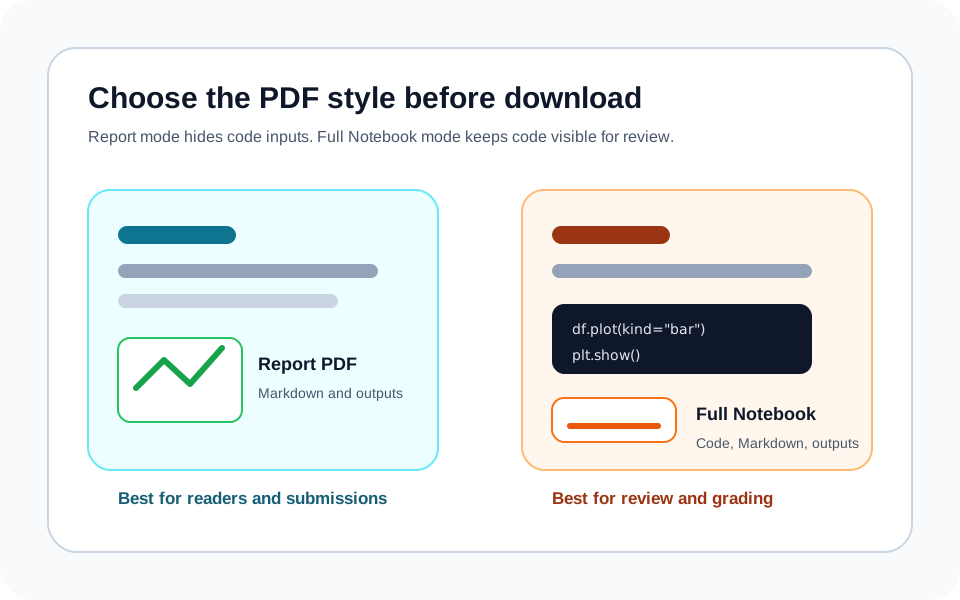
Report vs Full Notebook
Report mode serves readers. Full mode serves reviewers.
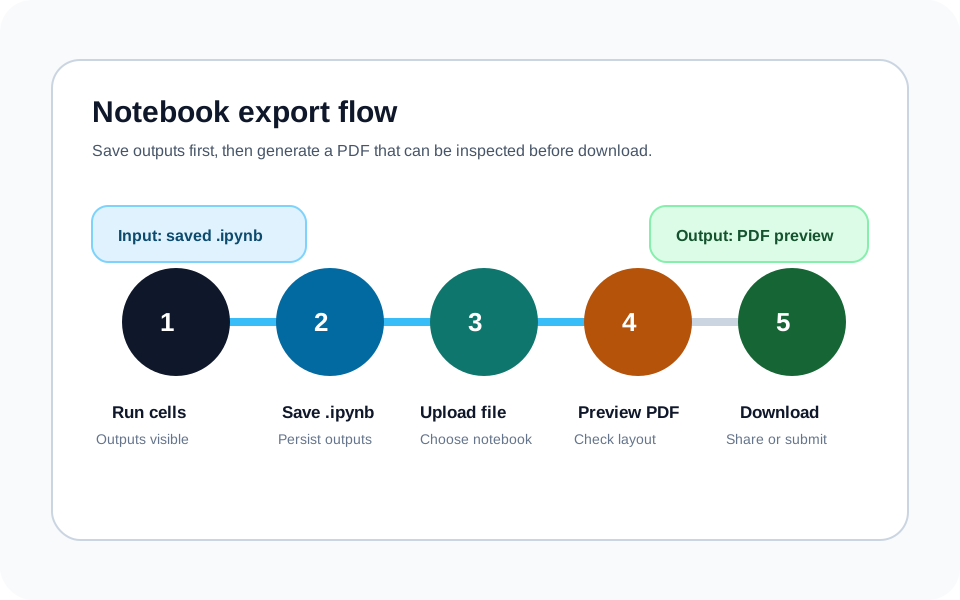
Notebook Export Flow
Run cells, save the notebook, generate the PDF, then inspect the result.
Recommended steps
- 1
Run and save the notebook
Execute the cells you want included and save the .ipynb file so outputs are stored in the notebook.
- 2
Upload the .ipynb file
Drop the notebook into the converter or choose it from your device.
- 3
Choose the PDF style
Pick Report PDF for readers or Full Notebook PDF for review and grading.
- 4
Check the preview
Confirm charts, formulas, wide tables, code visibility, and page flow before relying on the file.
- 5
Download the PDF
Open the full viewer if needed, then download the generated PDF for sharing, submission, or archiving.
Specs and limitations
- Supported source
- Standard .ipynb notebook files with saved cells and outputs.
- Rendering model
- Notebook content is rendered to a PDF artifact; notebook code is not executed.
- Output modes
- Report PDF hides code inputs; Full Notebook PDF keeps code cells, Markdown, and outputs together.
- Preview requirement
- The generated PDF should be inspected before download when the notebook contains long code, wide tables, or dense charts.
- Known limits
- Interactive widgets, missing external files, remote assets, and unsaved outputs cannot be restored during conversion.
- Privacy boundary
- Files are temporary processing assets; do not upload notebooks containing secrets.
FAQ
Does it run my notebook code?
mechanismNo. The converter renders saved notebook content only. Run all required cells and save the notebook before uploading.
Should I use Report PDF or Full Notebook PDF?
decisionUse Report PDF for readers who only need explanation and results. Use Full Notebook PDF when code review, grading, or reproducibility requires visible code cells.
Should I use Jupyter export, nbconvert, or IPYNB Tools?
decisionUse built-in Jupyter or nbconvert when your local stack is already working. Use IPYNB Tools when TeX, Pandoc, permissions, fonts, or editor export issues are blocking a shareable PDF.
Why are some outputs missing from my PDF?
mechanismThe usual cause is that the notebook was not saved after running cells, or the visible result depends on external files, interactive widgets, or remote assets that are not embedded in the .ipynb file.
Why is preview important?
mechanismA preview helps you check page flow, formulas, charts, tables, and code visibility before you rely on the PDF for submission or sharing.
Does it work with Colab and VS Code notebooks?
descriptiveYes, if the file is a standard saved .ipynb notebook and the outputs you expect are already stored in it.