
Fix IPYNB to PDF Export Errors
This page is for notebook users who can open or run a Jupyter Notebook, but cannot get a dependable PDF because nbconvert fails, xelatex is missing, Pandoc is unavailable, saved outputs are blank, or browser print settings distort the result. The fastest fix is to separate content-state problems from local export-toolchain problems, then switch to a saved-notebook fallback when the notebook itself is already complete.
Extractable Summary
- Page type
- Troubleshooting page for PDF export failures, not a duplicate tool landing page.
- Best for
- Notebook users blocked by nbconvert, xelatex, Pandoc, blank outputs, clipped tables, or unstable print flows.
- Primary diagnosis
- First decide whether the problem is unsaved notebook content or a local export stack failure.
- Fallback path
- Run and save the notebook, upload the saved .ipynb file, generate a PDF preview, then download.
- Boundary
- The fallback renders saved notebook content only. It does not execute code or recover outputs that never entered the file.
Best when nbconvert or Pandoc fails
a local document-conversion dependency should not block a notebook that is already ready to share.
Best when xelatex or TeX is missing
managed machines and lightweight setups often cannot justify a full TeX install for one PDF export.
Best when outputs look blank after export
the page helps separate unsaved notebook outputs from true converter failures before you change tools.
Best when browser print changes the result
you can generate a notebook-aware PDF first, then use print only for final paper, margin, or scale adjustments.
When This PDF Export Fix Path Is The Right Choice
Use this path when the notebook content is already close to finished, but the final PDF step is blocked by local tooling or unstable layout output.
Start by separating content problems from export problems
The first question is not "which converter should I use?" but "is the notebook file itself complete?" If a chart, table, formula, or printed result is missing inside the saved notebook, no PDF route will reliably recover it. Run the notebook, confirm the outputs are visible, and save the .ipynb file before you debug the export stack.
If the notebook looks correct inside Jupyter, VS Code, or Colab, but the PDF step still fails, the issue is usually the local export layer rather than the notebook content. That is where nbconvert, Pandoc, xelatex, font setup, or browser print behavior becomes the real problem.
- Check visible outputs first
- Save the .ipynb file
- Only then diagnose nbconvert, Pandoc, or TeX
Common export errors and what they usually mean
A missing xelatex or TeX message usually points to a local PDF engine problem. A Pandoc or nbconvert failure points to a document-conversion dependency problem. A PDF with blank charts often means the notebook was never saved after cells ran. A PDF that opens but clips wide tables or changes margins is usually a layout issue introduced later in the print flow.
The practical goal is to match the symptom to the right layer. Do not reinstall everything when the real issue is just an unsaved notebook. Do not rerun the notebook over and over when the notebook already looks correct and the local PDF stack is the blocker.
- xelatex not found: local TeX stack issue
- Pandoc missing: conversion dependency issue
- Blank outputs: notebook content-state issue
- Clipped layout: final page-layout issue
Saved-notebook fallback workflow
When the notebook is already complete, the clean fallback is to keep your current notebook editor for execution, then upload the saved .ipynb file to a PDF renderer that works from the stored notebook content. That turns the last step into a document-rendering problem instead of a local dependency problem.
Choose Report PDF when the reader only needs Markdown explanations, charts, tables, formulas, and results. Choose Full Notebook PDF when code cells must remain visible for grading, review, or technical handoff. In both cases, preview the generated PDF before downloading so page breaks, formulas, and table width can be checked before submission.
Where browser Print to PDF still helps
Print to PDF is still useful, but later in the chain. Once a notebook-aware PDF exists, browser printing can help with paper size, margins, scale, or system print destination. It is not the best place to solve missing outputs, blank charts, or local nbconvert failures.
This distinction matters because many users waste time tweaking paper and scale settings while the real issue is upstream. Generate a correct PDF artifact first; use print settings only for final formatting adjustments.
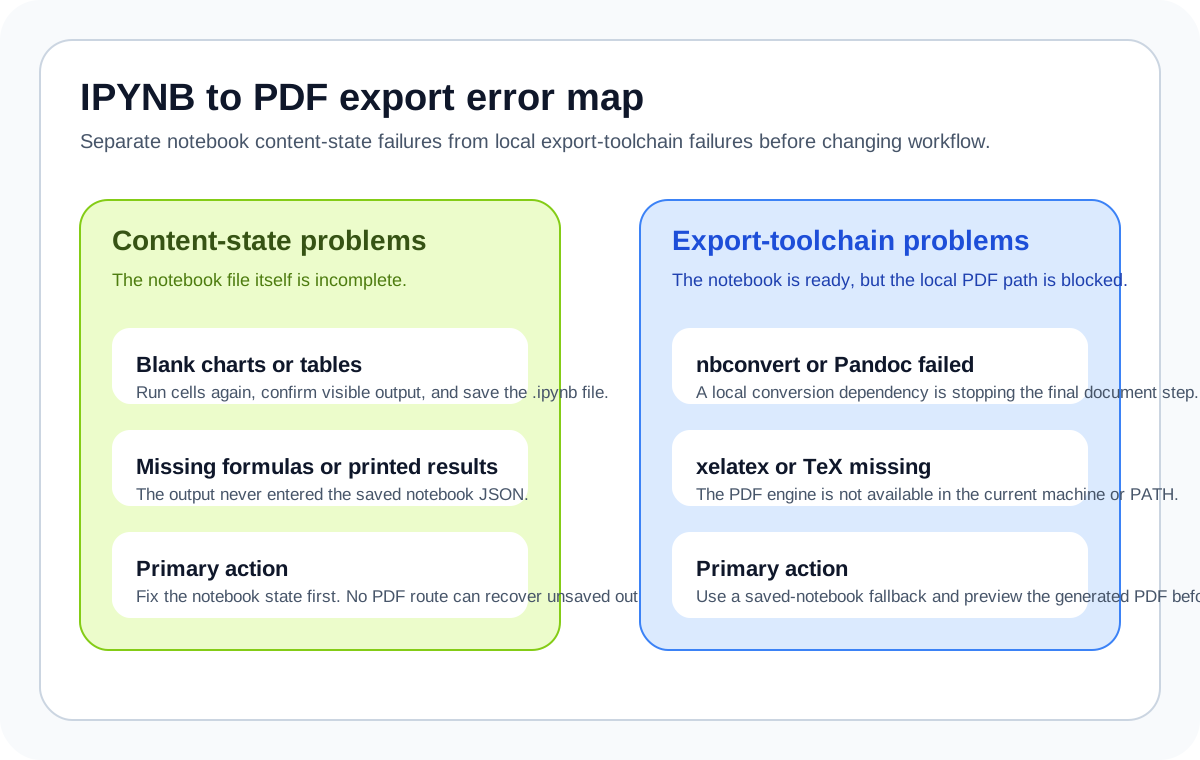
Notebook PDF Error Map
The fastest fix is to identify whether the notebook file is incomplete or the export stack is broken.
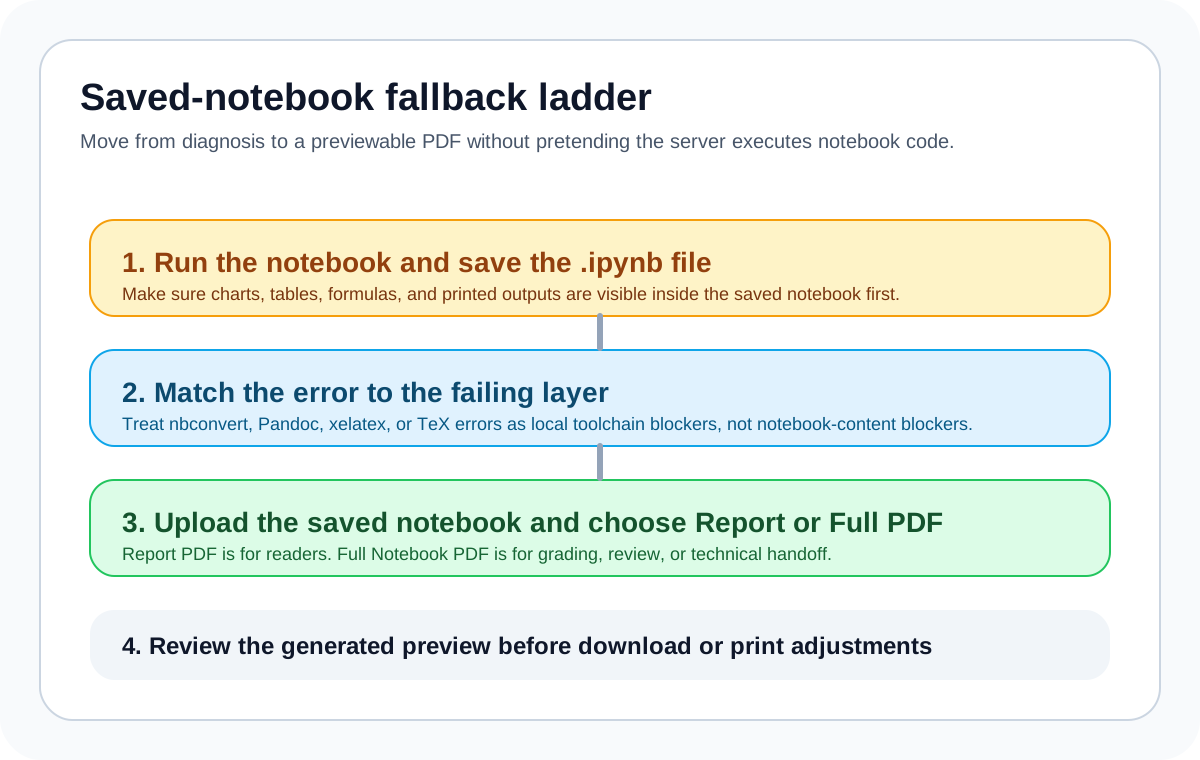
Fallback Decision Ladder
Check content first, then local dependencies, then generate a previewable PDF fallback.
Recommended steps
- 1
Open the notebook and inspect visible outputs
Confirm charts, tables, formulas, and printed results are present in the notebook before touching the export stack.
- 2
Save the .ipynb file after running cells
This stores the outputs inside the notebook JSON so a fallback renderer can preserve them.
- 3
Match the error to the failing layer
Treat xelatex, TeX, Pandoc, or nbconvert messages as local toolchain issues; treat blank outputs as notebook-state issues.
- 4
Use the saved-notebook fallback
Upload the saved .ipynb file, choose Report PDF or Full Notebook PDF, and generate the PDF artifact.
- 5
Review the generated preview
Check page flow, formulas, wide tables, code visibility, and then download or print for final paper adjustments.
Specs and limitations
- Best source state
- A notebook that already contains the outputs you want to preserve in the final PDF.
- Fallback boundary
- The fallback renders saved notebook content only and does not run kernels or open local datasets.
- Typical blockers
- nbconvert, Pandoc, xelatex, TeX installs, fonts, and downstream print settings.
- Typical false diagnosis
- Treating blank outputs as a PDF-engine problem when the notebook was never saved after execution.
- Best companion route
- Use the generic converter homepage after the notebook outputs are saved.
FAQ
What does this troubleshooting page help me fix?
descriptiveIt helps diagnose why a notebook that should become a PDF is failing at the last step, especially when nbconvert, xelatex, Pandoc, saved outputs, or print settings are involved.
What does xelatex not found usually mean?
mechanismIt usually means the local TeX engine required by one export route is missing, unavailable on PATH, or blocked in the current environment.
Why are my charts blank after export?
mechanismThe usual cause is that the notebook was not saved after the cells ran, or the visible result depended on an interactive widget or external asset that was never stored in the .ipynb file.
Should I debug nbconvert or switch to a fallback?
decisionDebug nbconvert only if local export is part of your required workflow. If the notebook is already complete and you only need a dependable PDF, a saved-notebook fallback is often faster.
Should I use Report PDF or Full Notebook PDF after the error is fixed?
decisionUse Report PDF when readers only need explanations and results. Use Full Notebook PDF when visible code cells are required for grading, review, or reproducibility.