
How to Convert IPYNB to HTML
Run the notebook, save the outputs in the .ipynb file, render it to HTML, and review the result in a browser before publishing or sharing it. Choose HTML when the next reader stays in a browser instead of needing a printable PDF.
Extractable Summary
- Best for
- Saved notebooks that should be reviewed in a browser, documentation page, LMS post, or internal knowledge base.
- Primary path
- Run cells, save outputs, render the .ipynb file to HTML, review in a browser, then share or publish.
- When PDF still wins
- Use PDF when you need fixed pages, submission-ready output, printing, archiving, or email attachments.
Best when the notebook will be read in a browser
HTML keeps the notebook close to its web-native structure with headings, code blocks, tables, and saved outputs.
Best for documentation and LMS pages
HTML is easier to embed, link, or paste into internal docs and teaching portals than a fixed PDF file.
Best before deciding whether PDF is necessary
HTML lets you confirm the notebook content and browser rendering before committing to fixed-page delivery.
Best when page breaks do not matter
HTML is fluid and screen-first; use PDF when paper size, margins, or printable layout are part of the requirement.
When This HTML Export Path Is The Right Choice
Choose this route when the next reader will stay in a browser and does not need page-numbered or print-ready output.
Before you export to HTML
Open the notebook in Jupyter, VS Code, Colab, or another notebook editor. Run the cells that should appear in the HTML page and save the notebook. The saved .ipynb file is the source of truth for Markdown, code, images, tables, charts, and printed results.
If a chart or table is visible only in a live widget or depends on unsaved runtime state, that result may not survive a static HTML export. Save a notebook state that already contains the outputs you want readers to see.
- Run cells first
- Save the notebook
- Check charts and tables
- Confirm outputs are already stored
Why choose HTML instead of PDF
HTML is stronger when the notebook will be read on screen, embedded into documentation, attached to an LMS, or shared as an internal reference link. It stays closer to the browser view of the notebook and avoids the fixed-page constraints of PDF.
PDF is still better for assignments, stakeholder handoff, printing, archiving, or any workflow that needs stable page breaks and a downloadable document artifact. HTML is the reading page; PDF is the submission or archive document.
- HTML for browser reading
- PDF for fixed delivery
- PY for source-code extraction
What a static HTML export preserves
A notebook HTML export can preserve Markdown explanations, headings, code blocks, saved tables, images, formulas, and saved chart outputs in a browser-readable layout. That makes it useful for publishing notebook results without requiring the next reader to open Jupyter.
It does not preserve live kernel execution, runtime widgets as interactive notebook sessions, or local files that were never rendered into notebook output. Static HTML is still a saved-output artifact, not a live notebook environment.
- Markdown and headings
- Code blocks
- Saved outputs
- No live kernel or hidden runtime state
Use HTML as a decision point, not only a destination
For many teams, HTML is the easiest way to check whether the notebook content is ready for wider sharing. If the browser page already looks right, you can keep HTML for publishing or continue to PDF when a fixed document is required.
This is why HTML and PDF should be treated as sibling outcomes, not competing myths. HTML helps browser-first sharing; PDF helps fixed-page delivery. The important question is what the next reader needs to do with the notebook result.
Common publishing cases
Typical HTML export use cases include course portals, handoff notes, internal documentation, data-analysis summaries, lightweight experiment reports, and browser-based review workflows where a notebook editor would be too heavy for the next reader.
When those readers later ask for a printable or attachable version, the same saved notebook can usually move into a PDF workflow without changing the underlying notebook content.
- Course portals
- Internal docs
- Browser review links
- Lightweight publishing
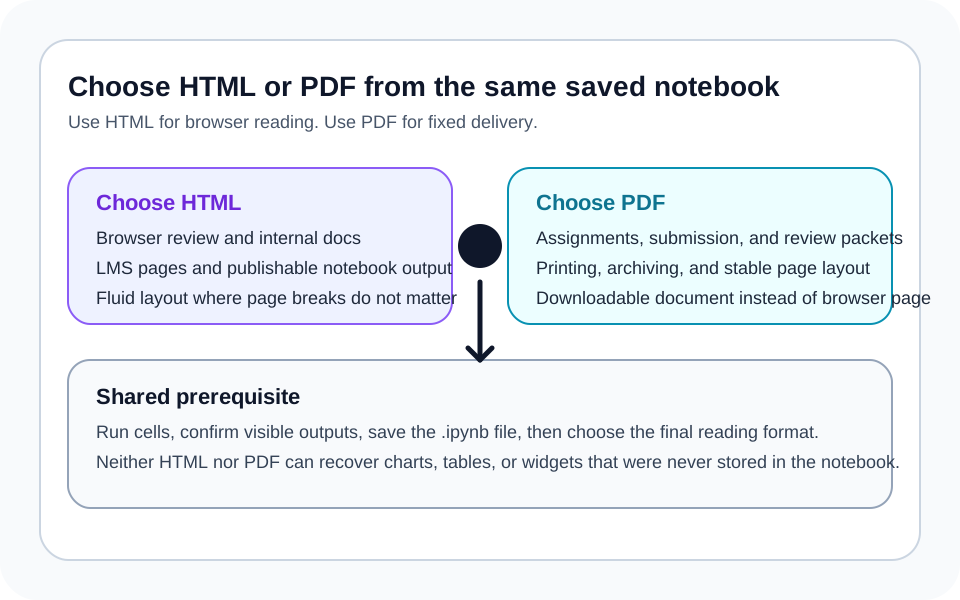
HTML vs PDF choice map
HTML is for browser reading. PDF is for fixed delivery and submission.
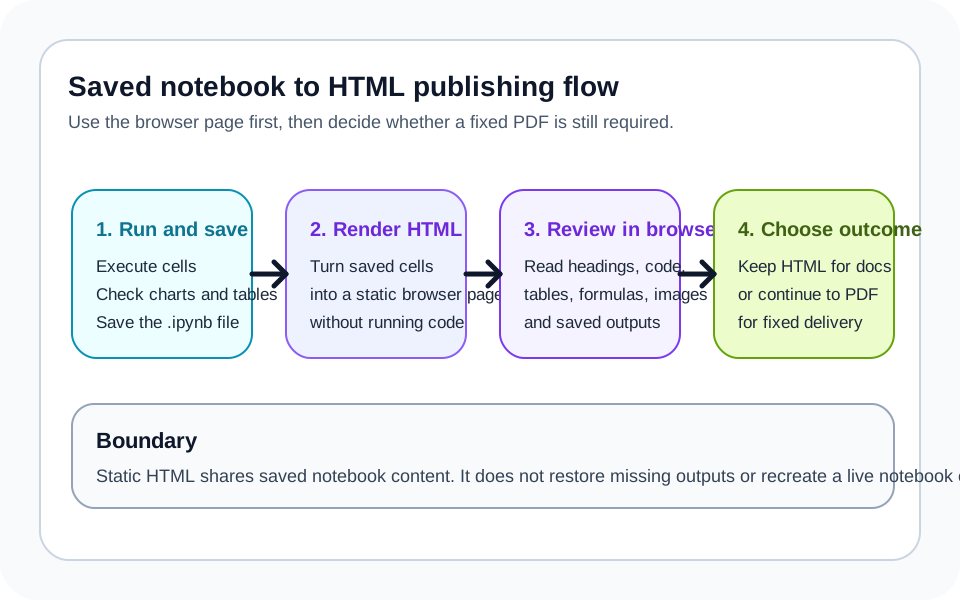
Notebook to HTML workflow
Run cells, save the notebook, review HTML in a browser, then decide whether publishing or PDF delivery is next.
Recommended steps
- 1
Run the notebook and confirm visible outputs
Make sure charts, tables, formulas, and printed results appear in the notebook before export.
- 2
Save the .ipynb file
HTML export depends on the notebook file that already stores the content and outputs you want to publish.
- 3
Render the notebook as HTML
Use a notebook HTML route or export process that turns saved cells and outputs into a static browser page.
- 4
Review the result in a browser
Check headings, code blocks, formulas, images, wide tables, and whether the content reads well without the notebook editor.
- 5
Choose the final delivery format
Keep HTML for browser reading and documentation, or move to PDF when fixed-page sharing, printing, or submission is still required.
Specs and limitations
- Works best with
- Saved notebooks that already contain the outputs and narrative readers should see in a browser.
- Does not do
- Execute code, pull hidden local assets, or rebuild outputs that were never saved in the notebook file.
- Best destination
- Documentation systems, LMS pages, internal review links, and browser-first publishing.
- When to switch to PDF
- Use PDF when the page must become a fixed document with stable page breaks and shareable file output.
FAQ
What does this IPYNB to HTML workflow produce?
descriptiveIt produces a browser-readable HTML version of a saved notebook so readers can review the content without opening a notebook editor.
Does HTML export run notebook code?
mechanismNo. Static HTML export displays saved notebook content and saved outputs, but it does not execute the notebook during export.
Will charts and tables appear in the HTML page?
mechanismThey can appear when they are already saved in the notebook. If the notebook was not saved after running cells, those outputs may be missing from the HTML export too.
Should I choose HTML or PDF for a notebook?
decisionChoose HTML when the next reader will stay in a browser or documentation system. Choose PDF when the reader needs a fixed, printable, attachable document.
Can I use HTML first and PDF later?
decisionYes. HTML is a useful browser-first validation step, and the same saved notebook can later move into a PDF workflow when fixed-page delivery becomes necessary.